Install before you travel
How to Install eSIM on Honor Using Quick Install
Very Important Notice ⚠️
Please read the eSIM installation instructions carefully before starting and follow the steps in order to avoid any installation issues. You can reinstall the eSIM on the same device only; it cannot be transferred to another device.
With Jawroam's Quick Install, there's no QR code to scan and nothing to type. Open the website on your phone, tap one button, and your phone installs the eSIM directly.
If Quick Install doesn't work on your device, you can install the eSIM the standard way by scanning the QR code on the same plan page.
Note: Steps may vary slightly depending on your device and software version.
Before You Start
- Open the website on the phone you'll travel with. The eSIM installs on the device you tap from.
- Connect to Wi-Fi during installation.
- Have two physical SIMs? Remove one first, as some phones run only two SIMs at a time.
- Quick Install currently works on Android phones with Google services.
Install the eSIM
1. Open the menu
Go to jawroam.com and tap the menu at the top of the screen.
2. Go to your eSIMs
Tap My eSIMs.
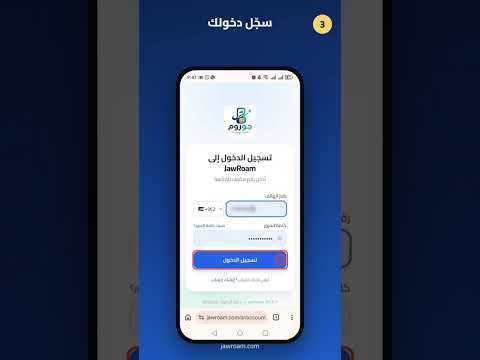
3. Log in
Enter your phone number and password, then tap Log in.
4. Open your plan details
Tap View details on the plan you want to install.
5. Tap Quick Install
Select Android, then tap Quick Install.
6. Confirm setup
When Setup your eSIM appears, tap Setup.
7. Wait for the download
Stay on this screen until the eSIM finishes downloading.
8. Done
When you see Your eSIM is all set, tap Finish. ✅
When You Arrive: Enable Data and Roaming
The following steps are from an Honor phone. Menu names may differ slightly on other devices.
9. Open Settings
Open Settings and tap Mobile network.
10. Open SIM management
Tap SIM management.
11. Set the eSIM for data
Set Default mobile data to SIM 2.
12. Open Mobile data
Go back to Mobile network and tap Mobile data.
13. Open Data roaming
Under SIM 2, tap Data roaming.
14. Enable international roaming
Select Domestic and international.
⚠️ Important: Don't select Domestic only, or mobile data won't work abroad.
🎉 You're all set!
Common Issues and Fixes
Nothing happens when I tap Quick Install Make sure you're using your phone's browser (not a browser inside another app) and that your phone is up to date. If it still doesn't work, use the QR code method on the same page.
My phone says it doesn't support eSIM
Dial *#06#. If no EID number appears, your device doesn't support eSIM.
The eSIM is installed but data doesn't work abroad Check that Default mobile data is set to SIM 2 and Data roaming is set to Domestic and international.
Need Help?
Jawroam support is on WhatsApp for any question before or during your trip.
🌍 eSIM plans for your trip: jawroam.com