Install before you travel
How to Install eSIM on Huawei (English Interface)
Very Important Notice ⚠️
Please read the eSIM installation instructions carefully before starting and follow the steps in order to avoid any installation issues. You can reinstall the eSIM on the same device only; it cannot be transferred to another device.
This guide is for Huawei phones set to English. You'll install your eSIM by scanning the QR code from Jawroam, then enable data and roaming when you arrive.
Note: Steps may vary slightly depending on your device and software version.
Before You Start
- Check eSIM support: only a few Huawei models support eSIM, such as the P40, P40 Pro, Mate 40 Pro, and Pura 70 Pro. Most Huawei phones bought in China don't. To check, look for an EID number in your phone's settings.
- Quick Install isn't available on Huawei, as most models don't have Google services. Use the QR code instead.
- Connect to Wi-Fi during installation.
- Physical SIM in the SIM 2 slot? Your phone will ask you to disable it when adding the eSIM.
Install the eSIM
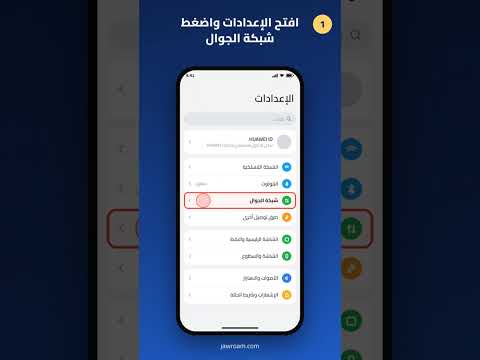
1. Open Settings
Open Settings and tap Mobile network.
2. Open SIM management
Tap SIM management.
3. Select SIM 2
Tap SIM 2, then select eSIM.
4. Add the eSIM
Tap Add eSIM at the bottom of the screen.
5. Scan the QR code
Point the camera at the QR code from Jawroam.
💡 QR code on the same phone? Take a screenshot of it, then tap Select from gallery and choose the image.
6. Confirm
Tap Add this eSIM, and keep the screen open until installation finishes.
7. Check it's active
Go back to SIM management and check that the eSIM appears under SIM 2 and shows Enabled. ✅
Manual Entry (If Scanning Doesn't Work)
On the scan screen, tap Enter manually, then copy the two codes from the iPhone section of your Jawroam email:
- SM-DP+ Address
- Activation code
Huawei uses the same two-field format as iPhone, not the Android format.
When You Arrive: Enable Data and Roaming
8. Set the eSIM for data
Go to Settings → Mobile network → SIM management, and set Default mobile data to SIM 2.
9. Turn on data and roaming
Go back to Mobile network → Mobile data, turn on Mobile data and Data roaming, then tap OK to confirm.
🎉 You're all set!
Common Issues and Fixes
The eSIM is installed but data doesn't work abroad Check that Default mobile data is set to SIM 2, and that Mobile data and Data roaming are both on.
Data doesn't work after enabling roaming Try selecting the network manually instead of automatically in Mobile data settings.
I can't find Add eSIM Your phone most likely doesn't support eSIM. Check for an EID number in settings.
Need Help?
Jawroam support is on WhatsApp for any question before or during your trip.
🌍 eSIM plans for your trip: jawroam.com